Conditional logic
Logic keeps forms short: a question or a whole step appears only when earlier answers call for it. For example, ask for a budget only when the project type is "New build" or "Renovation".
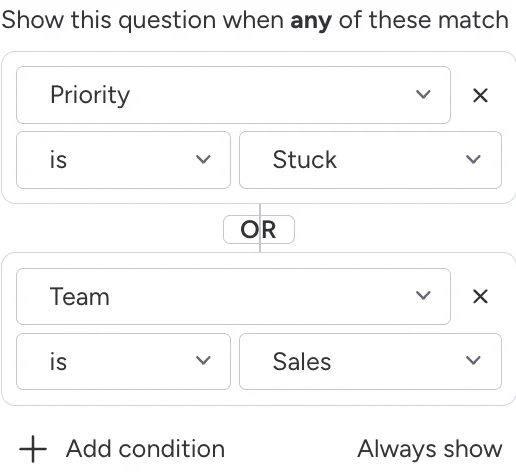
Show or hide a question
- Select the question and open the Question tab.
- Under Logic, click Add condition.
- Pick an earlier question, a comparison and a value.
The question now shows only when the rule matches, and its card gets a Conditional badge. Click Always show to remove the rule.
Rules can only use questions above the one you're editing, so people always answer the deciding question first.
Several conditions: AND or OR
Add up to 10 conditions to a rule. The and / or pill between them switches every condition at once:
- and: every condition must match.
- or: any one condition is enough.
Comparisons
| Answer type | Comparisons |
|---|---|
| Status, Dropdown, Tags, Country | is, is not, is empty, is answered |
| Text, Email, Phone, Link, Long text | is, is not, contains, does not contain, is empty, is answered (not case-sensitive) |
| Number, Rating | is, is not, is more than, is less than, is empty, is answered |
| Date | is, is before, is after, is empty, is answered |
| Checkbox, Hour, Timeline, File, Signature | is answered, is empty |
Show or hide a whole page
On a form with several pages, every page after the first has a Page logic button. Rules work the same way, using questions on earlier pages. A hidden page is skipped: its questions are neither asked nor saved.
What happens to hidden questions
When a question is hidden, its answer isn't required, isn't checked and isn't saved, even if someone filled it in before changing an earlier answer. Waypost enforces this on its server too, not only in the browser. A question that depends on a hidden question is hidden as well.
If you move a question above the one its rule depends on, Waypost won't save the form until you move it back or change the rule. The same goes for a page with logic that becomes the first page.
Dependent options (Pro)
Dependent options narrow the choices of a Status or Dropdown question based on an earlier Status, Dropdown or Country answer. For example, offer only the services sold in the country someone picked.
- Select the Status or Dropdown question and find Every option is offered in the Question tab.
- Click Depend on an answer and choose the earlier question.
- For each answer, pick the Options offered. Rows left on All options offer everything.
If someone gives an answer you haven't mapped, they see every option. Waypost refuses an option that wasn't offered.