Getting started
Waypost turns a monday.com board's columns into a form anyone can fill in. Each submission becomes a new item on that board, with every answer in its own column. People filling in the form don't need a monday.com account.
Waypost runs as a board view: you build and manage forms inside the board they write to.
Install Waypost
Install Waypost from the monday.com apps marketplace. An account admin may need to approve the install, depending on your account's settings.
Add the view to a board
Open the board that should receive the answers, click + next to the board's views, and choose Waypost.
If you open Waypost outside a board, it shows Add this view to a board.
Connect your monday account
The first time, Waypost asks you to Connect. Answers are saved to the board with your own access, so the app needs your permission once. Approve it in the tab that opens, come back, and click I've connected.
Build the form
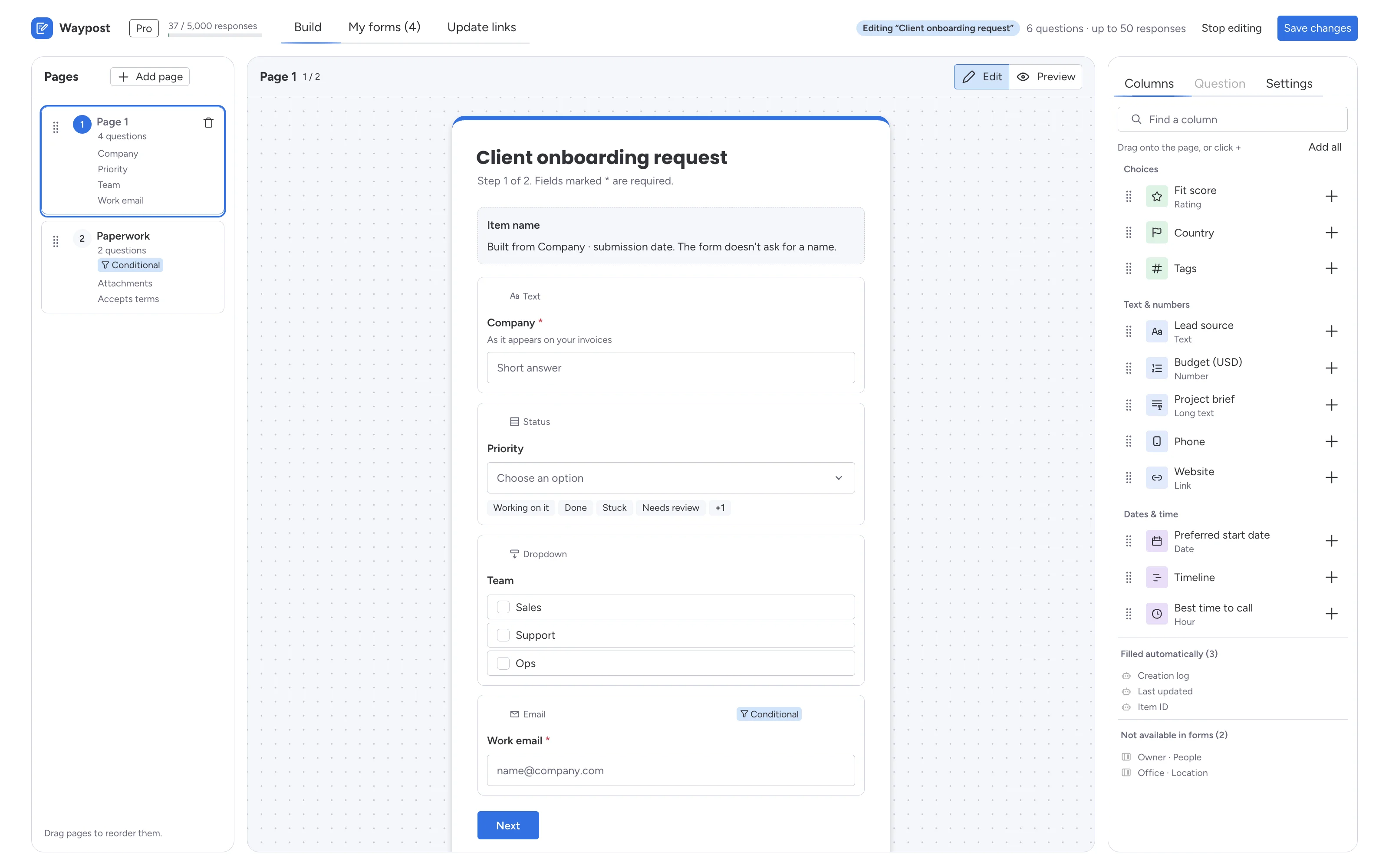
On the Build tab, pick the columns people should fill in. Each column becomes a question. Drag them onto the page, or click + next to a column. See Building a form.
Create the link and share it
Click Create form link. The Your form is live dialog gives you the link to copy. Anyone with it can fill in the form, and each answer arrives on the board as a new item.
View-only members of a board can't create forms. They see You have view-only access; ask someone with edit access to set one up.
The three tabs
| Tab | What it's for |
|---|---|
| Build | Create a form, or edit one you opened from My forms |
| My forms | Every form on this board: copy its link or embed code, edit it, or delete it |
| Update links | Links that let someone update one existing item through one of your forms (Pro) |
The header also shows your plan and this month's response count.
Next steps
- Question types: what each kind of column becomes.
- Form settings: thank-you message, close date, item names, logo and colour.
- Conditional logic: show questions and steps only when they apply.
- Update links: let people fix or finish an item later.