Building a form
The Build tab has three panels: Pages on the left, the form itself in the middle, and Columns, Question and Settings on the right.
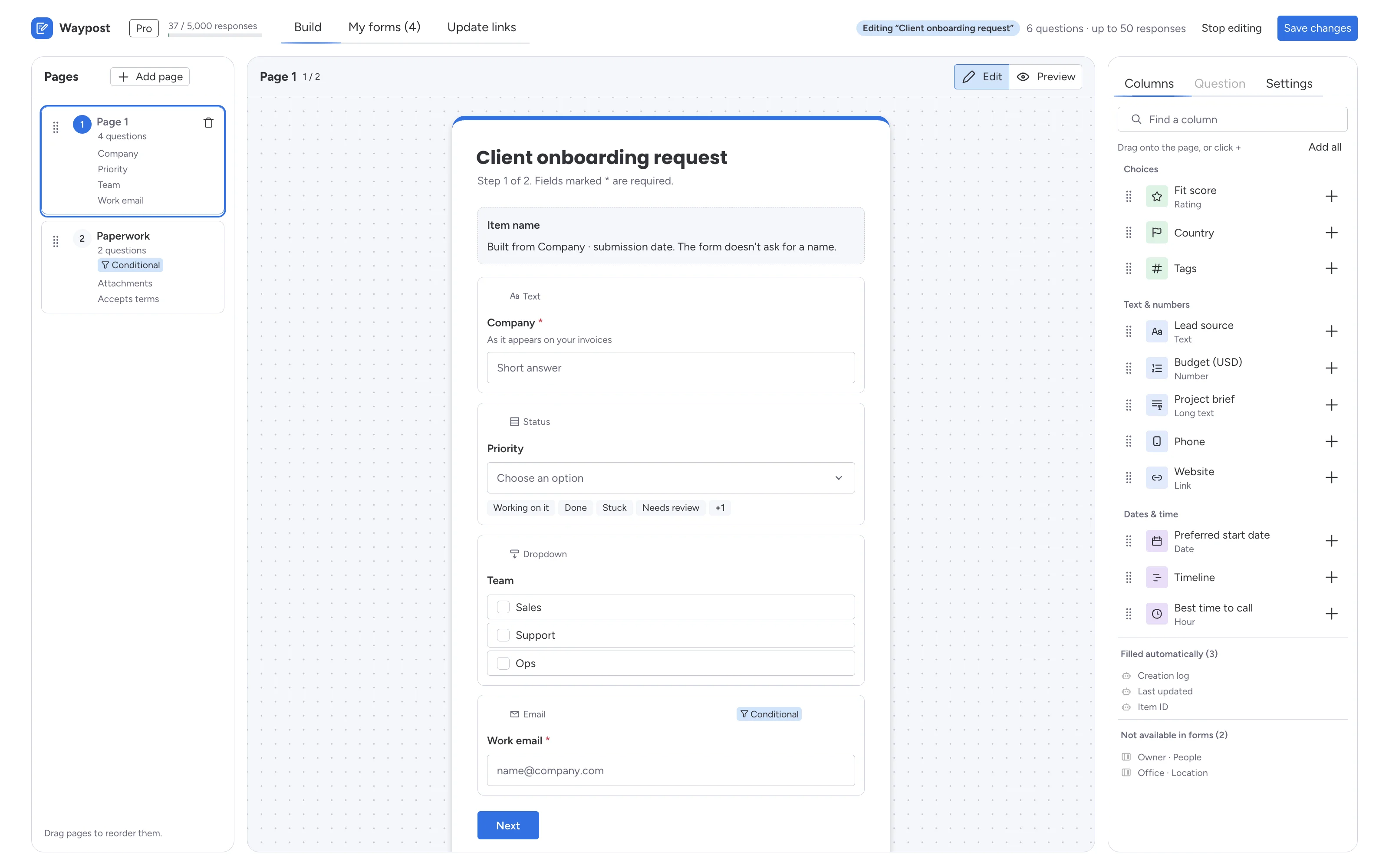
Add questions from your columns
The Columns tab lists the board's columns, grouped as Choices, Text & numbers, Dates & time, and Files & signatures. Use Find a column to search.
To add a question:
- drag a column onto the page, or onto a question (it lands just before it), or
- click + next to the column, or
- click Add all to add every column that's left.
Each column can be on the form once. A form can have up to 20 questions, and up to 5 of them can be file or signature questions.
Two lists at the bottom show columns that can't be questions:
- Filled automatically: Creation log, Last updated, Item ID and Auto number. monday.com fills these in for every new item.
- Not available in forms: People, Location, formulas and similar columns.
See Question types for what each column becomes.
The Name question
Every form starts with Name, because every monday.com item needs a name: the answer becomes the item's name. If you'd rather build names from other answers (for example company and date), turn on Build item names from answers in Form settings. The form then stops asking for a name.
Edit a question
Select a question to open the Question tab:
- Required: people must answer before they can submit.
- Help text: a short line shown under the question (up to 300 characters).
- Accepted files and Files per answer (1 to 5), for file questions.
- Collect as: for a File column, choose File upload or Signature.
- Logic: show the question only for some answers. See Conditional logic.
- Remove from form.
Question titles come from the column titles. To change a question's title, rename the column on the board.
Reorder questions
Drag a question card by its grip. With the keyboard, focus the grip, press Space, move with the arrow keys, and press Space again.
Split the form into steps
Long forms read better in steps. Click Add page in the Pages panel; the new page goes after the current one. A form can have up to 10 pages.
- Name a page by typing over Page 1 on its card. The name appears as the step's title on the form.
- Move a question to another page by dragging it onto that page's card, or with the Page buttons in the Question tab.
- Drag page cards to reorder them.
- Delete a page with its bin icon. You can't delete the only page, and the page's questions move to a neighbouring page instead of being removed.
On the public form, people see one step at a time with a progress bar ("Step 1 of 3") and Back and Next buttons. Empty pages are skipped.
Pages after the first can be shown or hidden based on earlier answers, with Page logic. See Conditional logic.
Preview
Switch the canvas from Edit to Preview to try the form, on Desktop or Phone width. Logic and steps work in the preview, and submitting it shows your thank-you screen. Nothing is saved to the board.
Create the link
Click Create form link. You can copy the link straight away, and later from My forms. See Sharing and prefill.
Edit a live form
In My forms, click Edit on the form. Make your changes and click Save changes. The link you already shared keeps working and shows the new version straight away. Click Stop editing to leave without saving.
If someone else saved the same form in the meantime, Waypost asks you to reload it and make your changes again, so nobody's edits are silently overwritten.